
Daktronics Rack - Daktronics Scoring and Timing Interface System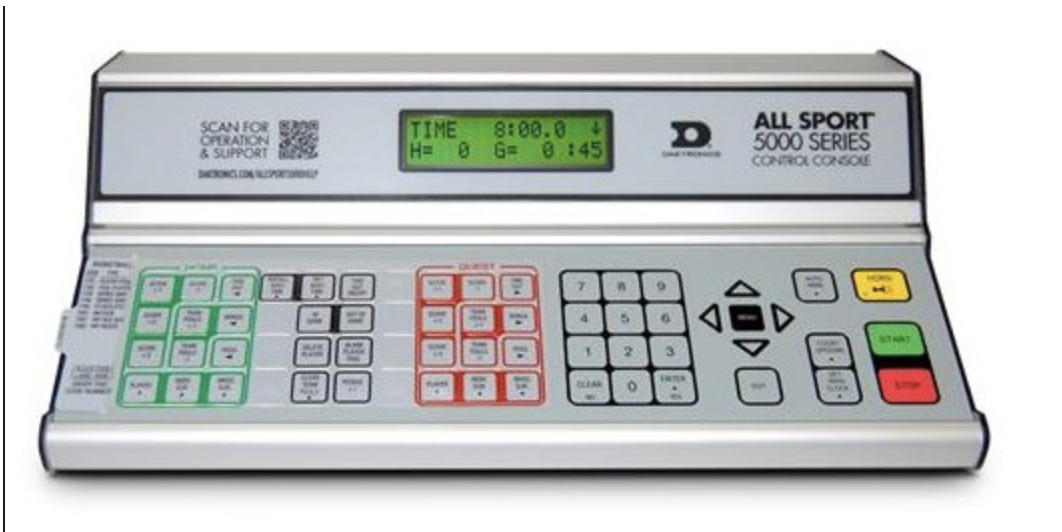
Requirements
1. Open up the AllSport 5000 Communicatios Hub software.
2. Click on 'Configuration' button.
3. Click on 'Sportzcast' tab.
Make sure you check the 'Enable Upload' box, and 'Server' is filled with scorebot.sportzcast.net
Port: 1402
Bot Number: Number that was assigned by Genius Sports/Sportzcast.
User Name: dak{BotNumber}
Password: gs{BotNumber}dak%
4. Click on 'OK'
5. Confirm you are viewing Sportzcast Packets counting up in the bottom of the communication hub.
6. Install the latest version for NCAA Livestats.
Configuration:
It is crucial to have TCP Ports 1400 to 1410 open on the network. Please involve your IT Department for this matter.
1. Once you have all packets being sent confirmed, run NCAA LiveStats. If it requires any updates, please complete them before the next step.
2. Please enter the Game Key and click on 'Next'.
3. On the top bar menu, click on 'Game' then 'System Check'.
4. On 'Live scoreboard data' for 'Clock Type' dropdown menu, select 'Cloud'.
5. Type the BOT number that was assigned on Bot Number field and click on 'CONNECT'.
6. Once you see the button changed to 'DISCONNECT', means the bot was successfully connected. Now, at the top right corner click on 'Save & Confirm'.
7. NCAA Livestats is ready to go.
If you have any doubts or concerns with the steps above, don't hesitate to contact support at
sportzcastcs@geniussports.com or you can call 3218883800
Comments
0 comments
Please sign in to leave a comment.